How to Install Addons in Minecraft Bedrock (Android, iPhone, Windows, Xbox, Switch, PlayStation) + Fixes
Last reviewed 1 November 2026 against Microsoft's Minecraft creator documentation, the Minecraft Help Center and the Bedrock 26.52 and 26.60 changelogs.
- Download from the creator's page
- Open the file with Minecraft
- Wait for Successfully imported
- Activate the packs in your world
- Turn on any needed experiments
You found a cool addon in a video, tapped the download, and then nothing happened. Maybe Minecraft said “Import failed”, or the pack imported fine but your world looks exactly the same as before. If you play on Xbox, PlayStation or Switch, you may not even be able to open the file at all.
This guide fixes all of that, one device at a time. You will learn what each file type does, the exact taps or clicks for Android, iPhone, iPad, Windows, Xbox, PlayStation and Nintendo Switch, and how to switch the packs on inside your world. There is also a table of the most common errors with fixes, so you can see how to install addons in Minecraft Bedrock and keep them working after every update.
Key facts
- Phones and PC
- Android, iPhone, iPad and Windows import files
- Consoles
- Marketplace, Realms or a friend's world
- File types
- .mcaddon, .mcpack, .mcworld, .mctemplate
- Packs to activate
- Behavior pack and resource pack
- Current Bedrock
- 26.60 (27 October 2026)
How to Install Addons in Minecraft Bedrock: Quick Steps for Every Device
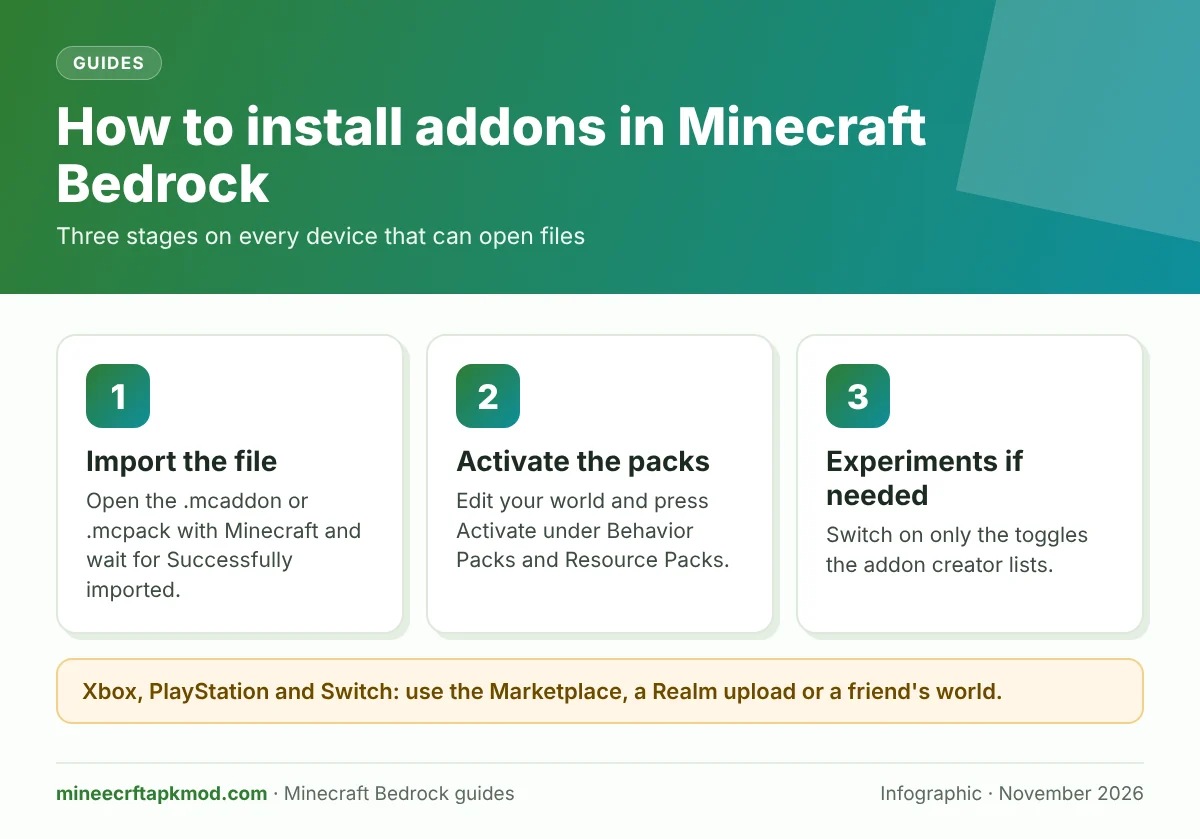
Most addons install in under a minute on phones and PCs. The process is always the same three stages: import the file, activate the packs in a world, then turn on any experiment the creator asks for.
- Update Minecraft Bedrock to the newest version (26.60 since 27 October 2026).
- Download the addon from the creator’s official page, and make sure it ends in .mcaddon, .mcpack, .mcworld or .mctemplate.
- Open the file with Minecraft: double click on Windows, “Open with Minecraft” on Android, or Share to Minecraft on iPhone and iPad. This is the core of how to install addons in Minecraft Bedrock on any device that can open files.
- Wait for the “Import Started” and “Successfully imported” messages at the top of the screen.
- Go to Play, tap the pencil (Edit) next to a world, open Behavior Packs and Resource Packs, and press Activate on the addon.
- Open Game settings, scroll to Experiments, and switch on only the toggles the creator lists.
- Load the world and test the new item, block or mob.
What Works on Each Device at a Glance
Phones, tablets and Windows PCs can import addon files from anywhere. Consoles cannot open downloaded files, so they rely on the Marketplace or on a world prepared on another device. The table below sums up the best route for each.
| Device | Can it open .mcaddon files? | Best way to install addons in Minecraft Bedrock | Where imported packs end up |
|---|---|---|---|
| Android phones and tablets | Yes | Open the file with Minecraft from a file manager | Android/data/com.mojang.minecraftpe/files/games/com.mojang |
| iPhone and iPad | Yes | Files app, then Share to Minecraft | On My iPhone/Minecraft/games/com.mojang |
| Windows 10 and 11 | Yes | Double click the file | %appdata%\Minecraft Bedrock\Users\Shared\games\com.mojang |
| Xbox One and Series X|S | No (officially) | Marketplace, Realms upload, or a friend’s world | Internal console storage |
| PS4 and PS5 | No | Marketplace, Realms upload, or a friend’s world | Internal console storage |
| Nintendo Switch and Switch 2 | No | Marketplace, Realms upload, or a friend’s world | Internal console storage |
What Are Minecraft Bedrock Addons?
An addon is a package that changes how Bedrock looks or behaves without replacing the game itself. It can add new mobs, items, blocks, recipes, sounds or user interface changes. Mojang introduced addons back in 2016 as the official, cross platform way to customise Bedrock.
Addons vs Mods: Why Java Mods Will Not Work
People often search for how to install mods on Minecraft Bedrock, but Bedrock has no Forge, Fabric or NeoForge. Java mods come as .jar files and only run on Java Edition, so Bedrock will never import them. On Bedrock, “mods” in videos almost always means addons, which are built from JSON files, textures, sounds and sometimes JavaScript through Mojang’s Script API.
Behavior Pack vs Resource Pack
Most addons ship as two halves. The behavior pack changes rules and logic, such as what a mob does, what an item crafts into or how loot drops. The resource pack changes what you see and hear, such as textures, models, animations and sounds.
If you switch on only one half, the addon breaks in a visible way. A resource pack alone gives you new looks with vanilla behaviour, while a behavior pack alone can give you invisible mobs or items with missing textures. Texture packs are resource packs only, which is why our guide on installing texture packs in Minecraft uses the same menu but only one tab.
Marketplace Addons vs Free Community Addons
Marketplace addons are sold or given away inside the game through the Marketplace button, paid with Minecoins. They are checked by Mojang before listing, they work on every Bedrock device including consoles, and since July 2025 they keep achievements switched on. Community addons are free files from creators’ pages, sites like CurseForge and MCPEDL, or review pages like our RLCraft addon and Factory addon guides.
The trade off is simple. Free addons give you far more choice but only import on phones, tablets and Windows. Marketplace addons cost Minecoins (some are free) but install with one button on any device.
What Addons Cannot Do
Addons work inside the limits Mojang gives creators, so they cannot rewrite the game engine the way big Java mods can. They also cannot run server plugins such as ranks, economies or land claims; those need server software like PocketMine MP. Shaders are a separate topic too: Bedrock shaders run through resource packs and Vibrant Visuals, which we cover in our guide to downloading shaders in Minecraft.
Addon File Types Explained (.mcaddon, .mcpack, .mcworld, .mctemplate, .zip)
Every Minecraft file is really a ZIP archive with a renamed extension. The extension tells Minecraft what to do with it when you open it. Knowing them saves you from most “Import failed” errors.
| Extension | What is inside | Where it shows up after import |
|---|---|---|
| .mcaddon | A bundle: usually a behavior pack and a resource pack, sometimes a world too | Behavior Packs and Resource Packs tabs |
| .mcpack | One single pack (behavior, resource or skin pack) | The matching pack tab, or the Dressing Room for skins |
| .mcworld | A complete world, often with packs already attached | Your Worlds list |
| .mctemplate | A world template with its own manifest | Create New, in the templates list |
| .zip or .rar | Anything; the creator did not rename it | Nothing until you rename or extract it |
| .jar | A Java Edition mod | Never works on Bedrock |
.mcaddon Files
A .mcaddon is the most common addon download. According to the community run Bedrock Wiki, it can hold up to one world plus any number of packs, so one tap imports the behavior and resource halves together. If an addon page offers only one download button, this is usually it.
.mcpack Files
A .mcpack holds exactly one pack. Some creators split an addon into two .mcpack files, one marked BP (behavior pack) and one marked RP (resource pack). In that case you must import both files, one after the other.
.mcworld Files
A .mcworld is a whole world, such as an adventure map or a survival world with the addon already applied. It appears in your Worlds list after import, and you do not need to activate anything yourself. Just check the world’s Experiments page before playing, because maps often rely on them.
.mctemplate Files
A .mctemplate is a world template. Instead of opening as a normal world, it appears as a starting option when you press Create New, so every new world you make from it starts with the same map and packs. Map makers use it for minigames and challenge maps.
.zip and .rar Files: When and How to Rename
Some creators upload a plain ZIP or RAR. Bedrock cannot import those directly, so you need to look inside first. What you find decides whether you rename it or extract it.
Rename a ZIP That Holds One Pack
Open the ZIP and look for a file called manifest.json. If manifest.json sits right at the top level, rename the file from name.zip to name.mcpack and open it. If you see two pack folders at the top level, each with its own manifest.json, rename it to .mcaddon instead.
Extract a ZIP That Holds Several Packs
If the ZIP contains finished .mcpack or .mcaddon files, extract it and open those files one by one. If it contains a folder inside a folder, the import fails, because Minecraft only looks at the top level. In that case extract it and use the manual com.mojang method shown in the Android and Windows sections below.
Copy your world before you add a big addon. If the pack breaks something, you still have the original world to go back to.
Before You Start: A Short Checklist
Before you install addons in Minecraft Bedrock, a few quick checks prevent most of the problems readers send us. They take two minutes and protect your saves.
Update Minecraft to the Latest Version
Addons are made for a specific game version, and older game builds often refuse newer packs. Bedrock 26.60 arrived on 27 October 2026 with the native Switch 2 version and over 600 bug fixes, as covered in our Minecraft 26.60 update guide. Update from the Google Play Store, App Store, Microsoft Store or your console store before you import anything.
Check the Addon’s Supported Version
Every good addon page lists the game version it was built for. An addon made for 1.20 may still load in 26.60, but scripted addons in particular can break after a big update. If the page has not been updated in a long time, read the comments to see whether it still works.
Back Up Your World
Behavior packs write data into your world, and removing them later can leave broken items or entities behind. Make a copy of the world first (Edit, then Copy World on most devices) and test the addon in the copy. Our guide to backing up your Minecraft account covers longer term backups.
Free Up Storage Space
Large addons with many models can need hundreds of megabytes once imported. Phones and the Switch are the first to fail quietly when storage runs low. Check Settings, then Storage inside Minecraft to see how much space your packs already use.
How to Install Addons in Minecraft Bedrock on Android (Minecraft PE)
Android is the easiest device after Windows. Minecraft PE is the old name for the phone version, and it is the same Bedrock game today, so every Bedrock addon works on it. The only common snag is a file manager that does not know which app should open the file.
Step 1: Download the Addon File
Use Chrome or another browser to download the .mcaddon or .mcpack from the creator’s page. Skip any button that asks you to install an app or an APK first. When the download finishes, note the file name and make sure it does not end in .zip or .bin.
Step 2: Open It With Minecraft
Open your Downloads folder in Files by Google, Samsung My Files or a similar file manager. Tap the addon, and if Android asks which app to use, pick Minecraft and choose “Always”. If the file opens in a ZIP viewer instead, long press it, choose Open with, then select Minecraft.
Step 3: Wait for “Successfully Imported”
Minecraft opens and shows “Import Started” at the top of the screen. The screen may go dark for a few seconds on bigger packs. When “Successfully imported” appears, the packs are in your library and ready to activate in a world.
Manual Install Through the com.mojang Folder on Android
If a creator gives you only loose folders, you can copy them by hand. Put behavior pack folders in Android/data/com.mojang.minecraftpe/files/games/com.mojang/behavior_packs and resource pack folders in the resource_packs folder next to it. Each pack folder must contain its own manifest.json, then restart Minecraft so it scans the folders again.
Android 11 and Newer: Folder Access Limits
Since Android 11, many file managers can no longer open the Android/data folder at all. If you cannot reach it, connect the phone to a PC with a USB cable and copy the folders from there, or simply repack the folders as .mcpack files and use the normal import. Opening files directly is always the better method on modern phones.
Common Android Problems
If nothing happens when you tap the file, the download may still be in a cloud only folder or was saved with the wrong extension. Move it to internal storage, rename it if needed, and try again. If the import starts but stops, update Minecraft from the Play Store, since an outdated game is the usual cause.
Never run an .exe or installer that claims to add Bedrock addons. Real addons are .mcaddon or .mcpack files that Minecraft opens by itself.
How to Install Addons in Minecraft Bedrock on iPhone and iPad
On iPhone and iPad, Apple keeps each app in its own sandbox, so you hand the file to Minecraft through the share sheet. The steps are identical on iPad. You only need Safari and the built in Files app.
Step 1: Download With Safari to the Files App
Open the addon page in Safari and tap the download link. Safari saves the file to the Downloads folder in the Files app by default. Tap the blue download arrow in the address bar to check that the file name ends in .mcaddon or .mcpack.
Step 2: Share the File to Minecraft
Open the Files app, go to Downloads and tap the file. If iOS shows a preview instead of opening Minecraft, tap the Share icon and choose Minecraft from the row of apps. If Minecraft is not in the row, tap More and scroll to find it.
Step 3: Confirm the Import
Minecraft launches and shows the same “Import Started” and “Successfully imported” messages as on other devices. You can now activate the addon from the world settings. Imported packs live in On My iPhone, then Minecraft, then games, then com.mojang if you ever need to find them.
Renaming a ZIP on iPhone
If the creator only offers a ZIP, long press it in Files and choose Rename. Change the ending to .mcpack or .mcaddon (following the manifest rule above), and confirm when iOS asks whether to change the extension. If the ZIP holds finished packs, tap it once to extract it, then share each pack to Minecraft.
Common iPhone and iPad Problems
If Minecraft does not appear in the share sheet, the file usually still has the wrong extension or is stored only in iCloud Drive. Download it fully to On My iPhone, check the name, and try again. Also make sure the Minecraft app is the full Bedrock game from the App Store, not a lookalike “mods” app.
How to Install Addons in Minecraft Bedrock on Windows 10 and 11
Windows is the fastest device for addons, because one double click does the whole import. It is also the only device where it is easy to manage pack folders by hand. Our guide to Minecraft for PC explains the editions if you are unsure which one you own.
Make Sure You Have Bedrock, Not Java
Addons need Minecraft for Windows, which is the Bedrock version, sold through the Microsoft Store and included with the Java and Bedrock PC bundle. If you launch from the Minecraft Launcher, pick “Minecraft for Windows”, not “Minecraft: Java Edition”. Java will never read a .mcaddon file.
Method 1: Double Click the .mcaddon or .mcpack
Open your Downloads folder and double click the addon file. Minecraft opens and imports it automatically, and the “Successfully imported” banner appears. If Windows asks how to open the file, choose Minecraft (not Minecraft Preview, unless you play Preview) and tick “Always use this app”.
Method 2: Manual Install in the com.mojang Folder
When a creator gives you raw pack folders, copy them into com.mojang yourself. Put behavior packs in the development_behavior_packs or behavior_packs folder, and resource packs in development_resource_packs or resource_packs. Microsoft recommends the development folders for packs you edit, and since 26.60 the game refreshes development packs whenever you manage a world’s packs and prefers them when their version is the same or newer.
New com.mojang Folder Location (1.21.120 and Later)
Since Bedrock 1.21.120, Minecraft for Windows runs on Microsoft’s GDK and keeps its files in a new place. Press Windows + R, paste %appdata%\Minecraft Bedrock\Users\Shared\games\com.mojang and press Enter. Worlds sit under your own user ID folder in %appdata%\Minecraft Bedrock\Users, inside games\com.mojang\minecraftWorlds, and Preview players use the “Minecraft Bedrock Preview” folder instead, as explained on Microsoft Learn.
Old com.mojang Folder Location (Before 1.21.120)
Older guides point to %localappdata%\Packages\Microsoft.MinecraftUWP_8wekyb3d8bbwe\LocalState\games\com.mojang. That path belonged to the old UWP app and is no longer used by current versions. If you copy packs there today, Minecraft will simply not see them, which explains a lot of “my addon vanished” reports.
Show File Extensions to Rename Files
Windows hides extensions by default, so a file called “addon.mcpack” may really be “addon.mcpack.zip”. In Windows 11 File Explorer, open View, then Show, and tick “File name extensions”; in Windows 10, tick “File name extensions” on the View tab. Then rename the file so it ends only in .mcpack or .mcaddon.
Common Windows Problems
If the file opens in WinRAR or 7 Zip, Windows has the wrong default app; right click, choose Open with, and select Minecraft. If it opens Minecraft Preview, import into Preview or change the default app. If the game opens but nothing imports, close Minecraft fully and double click the file again.
How to Install Addons on Xbox One and Xbox Series X|S
Xbox has no supported way to open downloaded addon files, so installing addons in Minecraft Bedrock on Xbox works differently. Mojang’s official feedback site still lists console file import as a community request rather than a feature. You still have three safe routes, and one risky one we do not recommend.
Method 1: Marketplace Addons
From the main menu, open Marketplace and choose the Addons category. Pick an addon, buy it with Minecoins or claim it if free, and download it. You can then start a new world with it straight from the store page or activate it in an existing world, as shown later in this guide.
Method 2: Realms Upload From a Phone or PC
This is how most console players get free community addons. On Windows, Android or iPhone, import the addon, create a world, activate the packs and test it. Then open your Realm settings, choose Replace World and upload that world; when you join the Realm from your Xbox with the same Microsoft account, the packs download with the world. Custom addons cannot be switched on inside Realm settings, so the upload is the only way.
Method 3: Join a Friend’s Addon World
If a friend hosts a world with addons on a phone or PC, you can join from the Friends tab on your Xbox. The resource packs download to your console when you connect, and the behavior packs run on the host. This is free and needs no Realm, but the world only exists while your friend is playing.
Third Party File Apps on Xbox (Not Recommended)
Some guides suggest Xbox file downloader and file explorer apps to copy packs into the console’s storage. These apps are not made by Mojang, results change with system updates, and some are packed with ads. We do not recommend them, and you risk wasting time on files that never import.
How to Install Addons on PlayStation 4 and PS5
PlayStation has the same rules as Xbox: no file import, but full Marketplace and Realms support. The PS5 has had its own native Bedrock version since 22 October 2024, and PS4 owners can still play the PS4 version on a PS5. Addons work the same on both.
Marketplace on PlayStation
Open the Marketplace from the main menu, select Addons and install the one you want. Minecoins for PlayStation are bought through the PlayStation Store. Once installed, the addon shows under My Packs in the Behavior Packs and Resource Packs screens of any world.
Realms and Friends’ Worlds on PlayStation
The Realms upload and friend’s world methods from the Xbox section work exactly the same on PS4 and PS5. Prepare the world on a phone or PC, upload it to a Realm, and join from your PlayStation. A friend hosting an addon world on another device also works through cross play.
How to Install Addons on Nintendo Switch and Switch 2
Nintendo Switch players can use Marketplace addons, Realms and friends’ worlds, but cannot import files. The native Switch 2 version changes performance and graphics, not those rules. Here is what you need to know for each console.
Marketplace on Switch
Open Minecraft, sign in with your Microsoft account, then select Marketplace, open Addons and press A on the item you want. Nintendo notes that Minecoins bought on a Nintendo device must be spent within the Nintendo ecosystem, so buy them on the console you play on most. Downloaded content can be downloaded again if you move to a new console.
What Changed With the Native Switch 2 Version
Minecraft launched natively on Switch 2 on 27 October 2026 with Bedrock 26.60 and Vibrant Visuals switched on by default. Nintendo offers a free upgrade for digital Switch owners in most regions (100 yen in Japan and 30 NTD in Taiwan). Vibrant Visuals do not run in split screen or with some Marketplace content, and 26.60 also added a Realms free trial on Switch, which makes the Realms route easier to test.
Switch Performance Limits
The original Switch has the least memory of any Bedrock device. Heavy addons with many new mobs can fail to download, cause long loading or crash a Realm session. Keep to one or two light addons on Switch 1, and free up storage if a pack download stops halfway.
Will Consoles Ever Import Addon Files?
Right now there is no official date for console file import. Players keep asking for it on the official feedback site, but Mojang has not promised it. Here is the one recent announcement worth watching.
Mojang’s New Creator Platform
At Minecraft Live on 26 September 2026, Mojang’s chief creative officer Jens Bergensten announced an evolving “creator platform” to help more people make and share Minecraft content. Mojang did not give tools, features or a timeline, and nothing in it changes how consoles install addons today. It builds on the affiliate program launched in June 2026, which pays creators a starting 5% commission on eligible Marketplace products sold on the web.
How to Activate Addons in a World
Importing only adds the addon to your library, which is just half of how to install addons in Minecraft Bedrock. Nothing changes in game until you activate it in a world, and this step is where most “addons not working” problems start. The same menus exist on every device.
Activate Addons in a New World
Press Play, then Create New, then Create New World. Scroll the left menu to Behavior Packs, open the Available tab, select your addon and press Activate. Do the same in Resource Packs if the addon did not switch it on automatically, then press Create.
Activate Addons in an Existing World
Press Play and tap the pencil icon next to your world. Open Behavior Packs, find the addon under Available, press Activate and accept the warning about changing an existing world. Check the Resource Packs tab too, and use a copy of the world for the first test.
Activate Marketplace Addons
Marketplace addons appear under My Packs in the same Behavior Packs and Resource Packs screens. You can also press “Create World” from the addon’s Marketplace page to start a fresh world with it already applied. When a friend joins a world that uses a Marketplace addon, the game offers them the download even if they do not own it.
Pack Order and Priority
When two packs change the same thing, the order of the Active list decides which one wins. Minecraft loads the bottom pack first and each pack above it on top, so the pack at the top of the list has the final say. Drag a pack (or select it and use the arrows) to move it, and since 26.60 the list scrolls while you carry a pack, so reordering long lists finally works on controllers too.
Global Resources vs World Packs
Resource packs can also be applied for every world through Settings, then Global Resources. Behavior packs cannot; they always belong to one world. Use Global Resources for texture packs, and keep addons per world so one broken addon cannot affect all your saves.
How to Check the Addon Is Working
Open the world and look for the new content: search the creative inventory, use a spawn egg, or craft an item from the addon’s recipe list. Resource changes show as soon as the world loads, while behavior changes appear when the new mob spawns or the item is used. If nothing shows up, jump to the troubleshooting table below.
Experimental Features for Addons
Some addons rely on features Mojang has not finished yet. Those features sit behind experiment toggles in your world’s Game settings. Only switch on the ones the creator asks for.
Which Experiments Addons Ask For
Microsoft’s current list of creator experiments includes the toggles below. Older tutorials mention Holiday Creator Features or Enable GameTest Framework, but those names no longer appear in the current list, so ignore them.
- Beta APIs: needed by script based addons that use beta versions of the Script API. This is the toggle most addon pages mention.
- Custom Biomes: lets addons create new biomes and change world generation.
- Upcoming Creator Features: unlocks newer block, entity and fog options that are still in testing.
- Experimental Creator Camera Features: used by addons with custom cameras.
- Drop 4 of 2026: a gameplay toggle in 26.60 that previews the Ice Caves drop; it is not needed for addons, but some packs are built around it. See our Ice Caves guide for what it adds.
How to Turn On Experiments
Open the world’s Edit screen, select Game, and scroll down to Experiments. Switch on the required toggle and confirm the warning by choosing “Turn on Experiments anyway”. On an existing world, Minecraft makes an automatic copy named “Copy of” your world, according to Microsoft’s experimental features page.
What Experiments Do to Your World
A world with experiments can never return to a normal world, even if you switch the toggles off later. Experimental worlds show an “Experimental” tag in your Worlds list and turn achievements off for good. Mojang also warns that experimental features can break or change with future updates, so keep your main survival world free of them.
Do Addons Disable Achievements?
It depends on where the addon comes from and what else the world uses. The rules changed in 2025 and were fixed twice in autumn 2026. Here is the current rule as of November 2026.
Marketplace Addons Keep Achievements
Since 15 July 2025, every addon from the Marketplace allows achievements on all Bedrock devices, as Mojang announced on minecraft.net. There is no limit on how many you stack, though Mojang suggests keeping to about three active addons for good performance. Achievements are not awarded backwards for things you did before.
Imported Addons, Cheats and Experiments Turn Them Off
Custom behavior packs you import yourself disable achievements in that world permanently. The same happens when you turn on cheats, switch the world to Creative, or enable any experiment. Plain resource packs and texture packs do not show this warning, so a texture pack on its own is safe for achievement hunters.
The 26.52 and 26.60 Achievement Fixes
After the Wilderness Bound update (26.50), older worlds with Marketplace addons had achievements wrongly switched off. Hotfix 26.52 on 25 September 2026 fixed that bug (Mojang bug tracker entry). Then the 26.60 changelog went further: worlds that lost achievements by mistake because of addons get them back the first time you load them in 26.60.
Using Addons on Realms and Servers
Multiplayer adds one rule when you install addons in Minecraft Bedrock: the world owner installs the addon, and everyone else downloads it when joining. Players never need to import anything themselves. The details differ between Realms and servers.
Realms
Marketplace addons can be applied to a Realm from its settings. Custom addons need the upload method: build the world locally with the packs active, then use Replace World in Realm settings (download a backup of the Realm first, because the upload overwrites it). Bedrock 26.60 added an applied packs list to the Realms hub world tab and made world uploads and downloads faster and more reliable.
Dedicated Servers and Hosted Servers
On a Bedrock Dedicated Server, packs go in the server’s behavior_packs and resource_packs folders and are listed by UUID and version in the world’s world_behavior_packs.json and world_resource_packs.json files. Most hosts make this easier with an upload button or by letting you upload a world you prepared locally. Marketplace addons do not work on personal servers outside Realms, which the Minecraft Help Center confirms.
How to Update or Remove an Addon
Creators update addons often, especially after a game drop. Updating and removing take less than a minute if you know where to look. Always test on a copy of the world first.
Update to a New Version (Duplicate Pack)
If you import a newer version while the old one is still installed, Minecraft may refuse with “Duplicate pack detected”. Delete the old copy in Settings, then Storage, select the pack and press the trash icon, then import the new file. Worlds that used the old pack will pick up the new one if the creator kept the same pack ID.
Remove an Addon From a World
Open the world’s Edit screen, go to Behavior Packs or Resource Packs, select the addon under Active and press Remove. Removing a behavior pack can leave behind entities or items that no longer exist, so restore your backup if the world starts acting strangely. Resource packs are much safer to remove.
Delete an Addon From Your Device
To free space, go to Settings, then Storage, and choose the Resource Packs or Behavior Packs category. Select the packs you no longer use and delete them. On consoles, 26.60 also shows a separate Marketplace storage bar on devices that keep Marketplace content apart from worlds.
Minecraft Addons Not Working? Errors and Fixes
If your addon is not working after you install addons in Minecraft Bedrock, find the message or symptom in the table and apply the fix. Most problems come from the file name, a missing activation or a version mismatch. The sections under the table explain the trickiest ones in more detail.
| Error or symptom | Likely cause | Fix |
|---|---|---|
| Tapping or clicking the file does nothing | The file manager does not link the file to Minecraft, or the file is cloud only | Use Open with (Android), Share to Minecraft (iOS) or Open with (Windows); download it fully to the device |
| File ends in .zip or .mcpack.zip | Browser or creator added .zip | Turn on file extensions and rename to .mcpack or .mcaddon |
| “Import failed” or “Unable to import” | Broken download, or manifest.json not at the top of the archive | Download again from the creator’s page; repack so manifest.json sits at the top level |
| “Duplicate pack detected” | An older copy of the same pack is installed | Delete the old version in Settings, then Storage, and import again |
| “Not a valid zip archive” | Incomplete download or badly packed file | Download again on a stable connection, or install the folders manually |
| Imported, but nothing changes in game | Packs were never activated in that world | Activate both Behavior and Resource Packs in the world’s Edit screen |
| Textures show, but items or mobs do nothing | Behavior pack off, or a required experiment is off | Activate the behavior pack and turn on Beta APIs or the toggle the creator lists |
| Invisible mobs or missing textures | Resource pack missing, or another pack overrides it | Activate the resource pack and move it to the top of the Active list |
| “Missing dependency” or pack requires another pack | The addon needs a library or a second pack | Install the extra pack the creator names, then activate it as well |
| Warning that the pack is made for an older version | Old addon, newer game | Look for an updated version on the creator’s page, or test in a copy |
| Game crashes when loading the world | Two addons conflict, or one is outdated | Remove packs one at a time in a copy until it loads, or restore your backup |
| Addon missing on Xbox, PS or Switch | Consoles cannot import files | Use the Marketplace, a Realm upload or a friend’s world |
| File is a .jar | It is a Java Edition mod | Find a Bedrock addon instead; .jar files never import |
Import Failed or Unable to Import
“Import failed” is a general error that hides the real cause. Nine times out of ten the download is broken or the creator zipped the folder inside another folder, so Minecraft cannot find manifest.json. Download again from the creator’s own page, and if it still fails, extract it and check that each pack folder holds a manifest.json directly.
Tapping the File Does Nothing
This is the classic phone problem. The file is either still downloading, sitting in a cloud folder, or saved with an extension Minecraft does not register. Move it to local storage, check the extension, and open it through Open with or Share instead of tapping it inside the browser.
Imported but Nothing Changes in Game
“Successfully imported” only means the pack is in your library. Open the world’s Edit screen and make sure the addon sits under Active in both pack tabs. Then check Experiments, because a scripted addon with Beta APIs off loads its textures but none of its features.
Missing Textures or Invisible Mobs
Purple and black blocks, missing item icons or invisible mobs mean the resource half is missing or overridden. Activate the resource pack and drag it above any texture packs in the Active list. If you use a texture pack through Global Resources, it may be replacing the addon’s textures, so test with it switched off.
Game Crashes After Adding Addons
Crashes usually come from two addons changing the same mob or from an addon that is too old for 26.60. Test in a copy of the world and remove one pack at a time until it loads. On phones and Switch, also lower render distance, since big addons use a lot of memory.
Safe Download Checklist for Addons
Fake mods are now a real threat: the WeedHack campaign infected over 116,000 computers in 2026 through fake mods, clients and tools promoted on YouTube and in search results. Bedrock addons themselves are just packs, but the pages that offer them can push fake installers. Read our full guide on fake Minecraft mods and malware, and check these points before every download:
- The file ends in .mcaddon, .mcpack, .mcworld or .mctemplate. Never run an .exe, .apk, .bat or .scr that claims to “install” an addon.
- You downloaded it from the creator’s own page, the Marketplace, CurseForge or the real MCPEDL site, not a lookalike domain.
- The page does not ask you to install a separate “addon installer” or “mod menu” app.
- The page never offers the full game for free or “unlocked” Marketplace items; buy Minecraft only from official stores.
- Download links that pass through several ad pages or ask for notifications are a warning sign; close them.
- The addon page shows a recent update, a supported version and real comments from players.
- You test new addons in a copy of your world, never in your only save.
Video Guide: Installing Bedrock Addons
If you prefer to watch how to install addons in Minecraft Bedrock, this tutorial walks through downloading an addon, importing both packs and enabling them with experiments in a new world. It is a community video, so menus may look slightly different in 26.60. The steps in this guide reflect the current game.

How to download and install addons in Minecraft Bedrock (The Breakdown)
Fake mod pages spread password stealing malware in 2026. Our safety guide shows the red flags and the safe sites to use.
FAQ About Installing Bedrock Addons
These are the questions players ask most after they install addons in Minecraft Bedrock for the first time. Short answers are below, and each links back to the section with the full steps.
Can I install addons on Minecraft PE for free?
Yes. Minecraft PE on Android, iPhone and iPad imports free community addons from creators’ pages exactly as described above, and the Marketplace also has free addons. You do need to own the real game from the Play Store or App Store.
Can I use addons on Xbox without a PC?
Yes, through the Marketplace or by joining a friend who hosts an addon world on a phone. For free community addons, a phone or tablet can prepare a world and upload it to your Realm, so you do not need a PC at all.
Why does my addon show textures but the items do nothing?
The behavior pack is not active, or the addon needs an experiment such as Beta APIs. Activate the behavior pack in the world’s Edit screen and turn on the toggle the creator lists.
How many addons can I use at once?
There is no hard limit, but Mojang recommends about three active addons for smooth performance. Addons that change the same mob or item often conflict, so add them one at a time.
Do resource packs disable achievements?
No. Plain resource packs and texture packs do not turn off achievements. Custom behavior packs, cheats, Creative mode and experiments do, while Marketplace addons keep achievements on.
Do addons work on Realms?
Yes. Marketplace addons can be applied from Realm settings, and custom addons work when you upload a world that already has them active. Everyone who joins downloads the packs automatically.
What is the difference between .mcpack and .mcaddon?
A .mcpack holds one pack, while a .mcaddon bundles several packs (usually a behavior pack and a resource pack) and sometimes a world. Both import the same way.
Now you know how to install addons in Minecraft Bedrock on every device, why a file sometimes refuses to open, and how to fix “Import failed”, missing textures and dead features by activating the right packs and experiments. Pick an addon from our reviews, import it, test it in a copy of your world, and enjoy your new Bedrock adventure.